Read-only preview: {{ currentUser?.name || 'Session unavailable' }} {{ currentUser?.email }}. Private data is visible. Purchases, downloads and all changes are disabled.
Tell us about your experience and the courses or topics you would like to design. Administrators review your proposal and may ask follow-up questions here. If accepted, you receive an enrolment invoice. Designer access starts only after payment is confirmed; your existing roles are retained.
Sign in again if prompted, complete any required two-factor setup, then choose Designer below your name to create courses.
{{ checkoutMessage }}
Manage Designers
Review the proposal, ask follow-up questions, approve for configuration, set an enrolment fee, then submit the invoice. Designer access activates only after payment.
Advisory target: WCAG 2.2 Level AA. Automated checks cannot prove conformance. These reports do not block publication, certify legal compliance or replace a human audit of the full learning and purchasing journey.
Loading, scanning or saving...
{{ accessibilityMessage }}
{{ accessibilityReport.review.current ? 'Manual review recorded for the current saved version' : 'Previous review is stale: the material has changed' }}.
Reviewer: {{ accessibilityReport.review.reviewer_name }}. Date: {{ accessibilityReport.review.reviewed_at }}.
Recorded rendered scan: {{ accessibilityReport.review.scan_summary.scope }}; {{ accessibilityReport.review.scan_summary.issue_count }} affected node(s), {{ accessibilityReport.review.scan_summary.incomplete_count }} incomplete node(s).No rendered scan was recorded with that review.
No manual review has been recorded.
Saved-content checks
These checks inspect authored lesson data, not rendered colours or interaction behaviour. The version also covers linked uploaded simulators and course-file metadata; external resource changes still need a new manual review.
No authored-data issues detected. This is not an accessibility pass.
Rendered browser checks
Open this course in the lesson reader, then check each saved lesson and its interactive states. Only the currently displayed lesson is scanned; embedded frames, other lessons, catalogue, login and checkout are not covered.
The uploaded simulator runs in the existing no-network sandbox with a locally bundled scanner added only to this temporary preview. Exercise its controls, then rescan each state. Neither the source nor its saved file is changed. Results from uploaded scripts are advisory, not a trusted certification.
{{ accessibilityScan.issues.length }} rule(s) with detected issues; {{ accessibilityScan.incomplete.length }} rule(s) need manual verification. Zero findings do not establish WCAG conformance.
Designed by an IT trainer and instructional designer. Plain English, real practice, no jargon.
The approach
AI training designed for how adults learn
Lots of AI training shows you clever tricks and then leaves you to work out the rest. My courses work the other way round. Each one starts with something you actually want to do, like researching a topic, writing a story or launching a website, and teaches you the AI tools that help you do it.
I'm an IT trainer and instructional designer based in Malahide, County Dublin. I've spent years designing training for adults of all abilities, and I use AI every day in my own work. Every course gives you clear steps, practice on your own tasks, and honest guidance on where AI helps and where you still need to check its work.
Choose your course
Four practical courses
Introduction to AI
Learn what AI is and how it really works, tracing its story from Alan Turing to ChatGPT. Gain practical skills to use AI tools safely and effectively, spot mistakes, bias and hype, and understand the broader impact AI has on your work and daily life.
Ideal for: complete beginners and teams getting started.
AI Research Workflow: Perplexity, Gemini Notebook and the Gemini Web App
Go from question to finished piece of work. Research with Perplexity and its cited answers, organise your sources in Gemini Notebook, and turn them into reports, summaries and drafts with the Gemini web app.
Ideal for: professionals, students and anyone who researches, writes or reports.
Creative Writing with AI
Use AI as a writing partner, not a ghostwriter. Brainstorm ideas, develop characters and worlds, get feedback on drafts, and keep your own voice throughout.
Ideal for: fiction writers, hobbyists and anyone with a story to tell.
Creating a Commercial Website with Vibe Coding
Build a real, working website for your business by describing what you want to AI, in plain English, with no coding background needed. You'll also learn how to test it and check it before it goes live.
Ideal for: small business owners, freelancers and side projects.
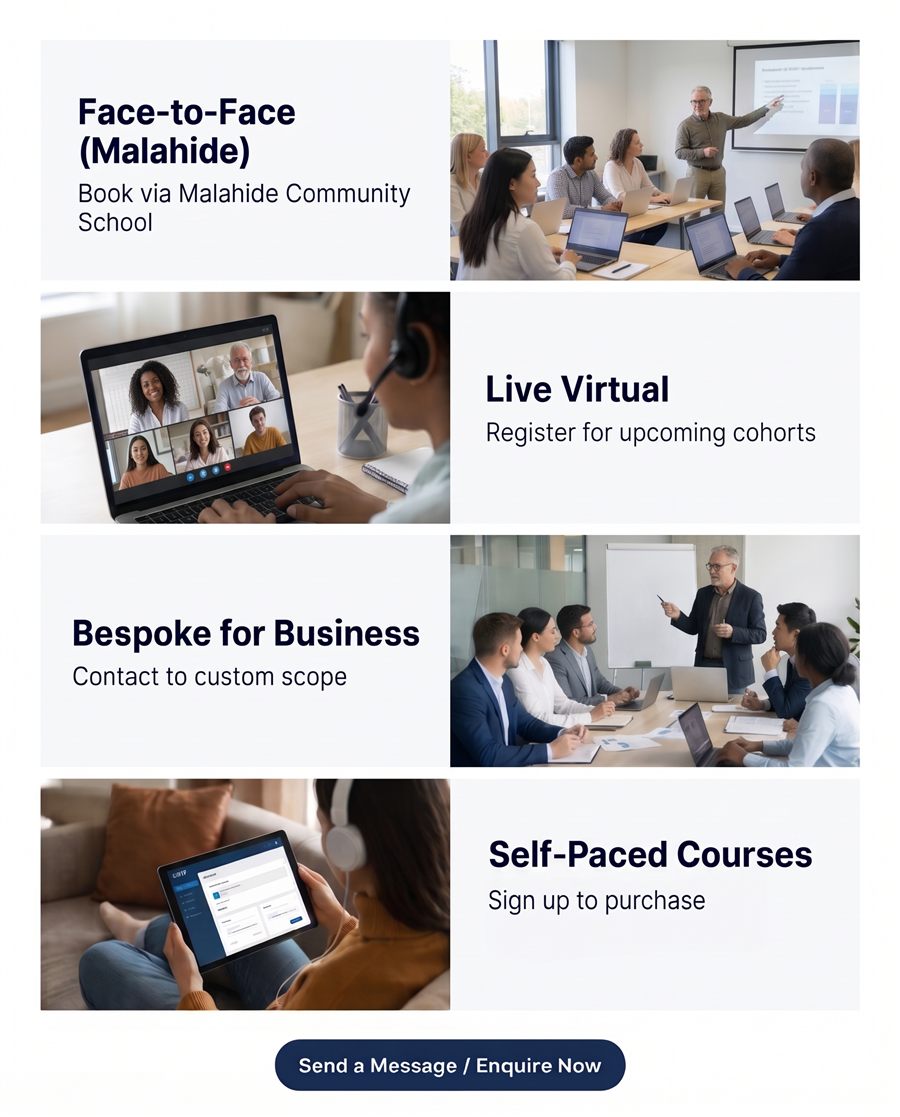
Work through online modules whenever suits you. Short lessons, practical exercises and checks along the way. Go back over anything as often as you like.
Blended
The same online modules, plus live instructor-led sessions where you practise, ask questions and get feedback.
Face-to-face, in person
Live online (vILT), a virtual classroom session over Zoom
Blended learning works well for teams and organisations, and sessions can be tailored to your work.
What you'll leave with
Skills you've practised on real tasks, not made-up examples
Step-by-step guides and prompt templates to keep using
A simple checklist for using AI safely and checking its answers
Who it's for
Individuals who want to use AI with confidence, at their own pace
Small businesses that want practical skills they can use straight away
Organisations looking for blended training for their staff
Your next step
Not sure which course suits you?
Send me a message with a little about what you'd like to do, and I'll recommend the right course and format.
Earned early-interest discounts are applied automatically to eligible courses using your verified account email. We use whichever saves more across your basket: those discounts or a valid coupon, never both.
Checking your basket price and early-interest discounts...
Paid checkouts open Stripe; a fully discounted basket enrols immediately without payment. Card details are never seen or stored by this site. If you are already enrolled through a vILT session, you do not need to buy its courses separately.
Your verified public registration makes you eligible for active PDF gifts. No purchase or course enrolment is required. You can return here to download them again while they remain active.
{{ gift.title }}
No active gifts are available to you right now. Please check back soon.
{{ signupGift.welcome_sent_at ? 'Need the welcome email again?' : 'Did not receive your welcome email? Your download access is unaffected.' }}
This gift is available only to new public registrations after email verification. Administrator-created accounts and accounts registered before the offer began are not included.
Email subscription
You have unsubscribed from the email list associated with this link. Earned early-interest discounts, other course interest lists, your account, course access and free graphic novel are unaffected.
Stop receiving updates from the email list associated with this link? No sign-in is required. This unsubscribes only this course's list or general news, not all lists. Account and verification emails are unaffected.
{{ unsubscribeMessage }}
Confirm course interest
Confirm that you want email updates for the course you expressed interest in and earn 20% off that course when it launches. The discount is applied automatically at checkout with a verified learner account using the same email, has no expiry and remains yours if you unsubscribe. Early-interest discounts and coupons are not combined; we use whichever saves more across your basket. This does not enrol you or subscribe you to general news. No sign-in is required to confirm.
This message is shown after the learner completes the course evaluation.
{{ completionMessageError }}
{{ completionMessageNotice }}
Congratulations! {{ currentCourse.course.title }} is complete.
{{ courseCompletionMessage }}
Your completion is recorded. You can revisit the lessons without resetting your progress or submitting another evaluation.
Would you like to leave a review?
Congratulations on completing {{ currentCourse.course.title }}. Share your experience with a one-to-five-star site review. This is optional and separate from your confidential course evaluation.
Your review and account name may be published after administrator approval. If you have already left a site review, you can update it.
Submit this evaluation after completing every lesson to complete the course. Previously finished courses also require a submission; your lesson progress is kept.
Confidential, not anonymous: administrators and the designer who owns this course can see your name, email and answers. Teachers cannot view responses. Historical evaluations submitted under the administrator-only notice remain administrator-only. Feedback is used to improve courses, not to grade your knowledge. You may choose Not applicable or Prefer not to answer. Written comments are optional; do not include sensitive personal information.
Loading evaluation...
{{ evaluationError }}
{{ evaluationMessage }}
Evaluation submitted on {{ evaluationState.submitted.submitted_at }} using template version {{ evaluationState.submitted.template_version }}. {{ evaluationState.status.is_complete ? 'Course complete.' : 'Complete the remaining lessons to finish the course.' }}
Complete all lessons first: {{ evaluationState.status.completed_lessons }} of {{ evaluationState.status.total_lessons }} completed. Pass every lesson quiz before evaluating the course.
Insert a paragraph, section heading or sub-heading above any block, or at the end. Type into the new block, then Save lesson to keep your changes.
Use Insert image above at the desired position, or Insert image at end below. Use Replace image to change an existing picture. PNG, JPEG, GIF and WebP up to 5 MiB. Changes are kept only when you save the lesson.
Use Insert video above or Insert video at end for YouTube, Vimeo or direct HTTPS MP4/WebM links, or upload an MP4/WebM up to 25 MB. Add a title and transcript and check captions on the source video, then Save lesson.
Select text, then use its formatting toolbar (Ctrl/Cmd+B, I, U or K). Colour and alignment apply to the whole block. Use the block type selector to turn paragraphs into headings or lists. Formatting is saved as text markers; expand the preview to see the result.
{{ block.type.replace('_', ' ') }}
One item per line.
Uploading…
Cloudflare image assistant
PNG, JPEG or WebP up to 5 MiB. A copy is fitted within 511 by 511 pixels without cropping before sending. Editing may reduce detail or change proportions (minimum output size 256 pixels per side). Animated images, SVG, exact diagram/text preservation and advanced layer editing are not supported. Originals are never overwritten.
Open the AI panel above and confirm permission to send this image first. Requests may incur charges.
{{ courseAi.settings?.image_analysis_message || 'Analysis is not enabled. Administrator setup is required.' }}
{{ courseAi.settings?.image_editing_message || 'Image editing is not enabled. Administrator setup is required.' }}
Image AI information
Only the selected prepared image is sent. Accepting updates your unsaved draft; save the lesson normally to keep the changes. Rejected images are not uploaded.
Decorative images keep empty alternatives. For an informative image, uncheck Decorative and request fresh analysis before accepting.
{{ courseImageAi.error }}
{{ courseImageAi.message }}
For informative images, describe the information learners need, not just the filename. Complex diagrams also need a longer explanation. Missing alternatives appear in the advisory report but do not block publication.
Uploaded video selected. Entering a link or uploading again replaces this block's video.
{{ videoPlaybackErrors.get(block) }}
Review synchronised captions and audio description on the source video. A transcript does not replace required captions. These alternatives are shown below the embedded video.
{{ simulatorLoadError }}
{{ manuals.simulatorLoadError }}
{{ bundledManualsError }}
This {{ block.type.replace('_', ' ') }} block cannot be edited inline. It can be moved or deleted.
Uploading image. Wait before saving or cancelling.
Quiz questions
Question {{ qIdx + 1 }}
Select the radio button next to the correct answer.
Foundational Reference
Glossary of Deep Learning Terms
Essential definitions and conceptual mechanics used throughout this curriculum.
Attach documents while editing this course. Changes unpublish the course and require administrator approval again. Courses awaiting approval are read-only.
{{ courseFileLoadError }}
No files attached to this course yet.
{{ isUploadingCourseFile ? 'Uploading…' : 'PDF, Office, CSV, text, ZIP, images, MP3/M4A audio or video up to 25 MB.' }}
{{ courseFileMessage }}
Live sessions
Work through the course at your own pace and join live virtual sessions for extra support.
Your course includes {{ liveData.settings.included }} session{{ liveData.settings.included === 1 ? '' : 's' }} ({{ liveData.free_remaining }} left). Additional sessions cost {{ formatPrice(liveData.settings.price_cents) }} each.
This lesson has not been scheduled and unlocked for your course access. Check the lesson list for available previews.
Ask the course team for access or check the available preview lessons.
Your account is not currently subscribed to this course. Please contact your instructor.
This lesson is scheduled for Week {{ activeLesson.week }} of your cohort syllabus. Your course instructor will unlock this session in accordance with weekly lecture dates.
Pass all questions to complete lesson✓ All questions passed!
To submit a course evaluation, switch to Student view and open this course as an enrolled learner.
No assessment is required for this lesson.
To submit a course evaluation, switch to Student view and open this course as an enrolled learner.
DESIGNER DASHBOARD
Designer Dashboard
View all courses and curricula. Use status buttons to submit your courses for approval and publish or unpublish your approved courses and curricula. Use Course Management to create or edit courses.
All courses and curricula
Edit price and level on your own items; administrators can edit all items. Submitted items remain locked. Designer changes require approval again before publication. Coming-soon prices are set through the promotion / launch editor.
Named responses for your own courses submitted under the updated confidentiality notice. Historical administrator-only responses are not shared. Treat learner feedback as confidential.
Student course assignments are hidden by dashboard configuration.
Payments
Stripe payments and fully discounted coupon orders. Refunds are issued in the Stripe dashboard; remove a refunded student's course or session access manually.
Progress is shown for assigned courses and grouped by session membership.
{{ studentProgressFormat === 'pie' ? 'Overall student progress across assigned courses' : 'Completed lessons by student and course' }}
These reports measure lesson progress only. Course completion also requires a submitted course evaluation; evaluation answers are visible only to administrators in Site Configuration.
Blue: completed lessons. Grey: remaining lessons. Each student has one chart, weighted by lessons across all assigned courses in the selected cohorts. The Course filter applies only to the bar chart and table. Courses without lessons have no progress data.
Loading progress...
{{ sessionProgressError }}
No assigned course progress matches these filters.
No assigned course progress matches these filters.
Student progress is hidden by dashboard configuration.
Manage Site Configuration
Teacher request email template
Edit the plain-text email sent when a request is finished. All placeholders must remain so the requester receives the complete details. New submissions use the saved template; retries of existing invoices use their original email.
Loading template...
{{ teacherAdminError }}
{{ teacherAdminNotice }}
Role menu configuration
Manage titles, icons, captions, order and visibility for each role. Navigation displays the caption (up to 100 characters), or the title when no caption is set. Icons remain available in the configuration preview; clear an icon to restore its default. Save each role's menu after editing. Available items in the Add a menu item dropdown are sorted alphabetically. Guest is also used by signed-out visitors. Manage Site Configuration always remains accessible to administrators.
Teacher Enrolment, Principal Teacher Sessions / Teacher Training and Manage Gifts and Coupons have been removed as menu options. Their underlying features and records are unchanged.
Sign In (Guest) and Sign Out (each role) support custom titles and pasted icons. These account controls cannot be removed and keep their fixed header positions. Guest Sign Out applies to signed-in users viewing the Guest menu.
Uploading icon...
{{ roleMenuMessage }}
Dashboard section configuration
{{ dashboardSectionLoadError }}
Check optional sections to show them or clear them to hide them. Save each role's dashboard. Reviews for approval, Teachers and All Designer requests always remain visible on the Administrator Dashboard. Configuration is managed on this separate page and cannot hide itself.
Administrator: course submissions and payments. Teacher: assigned courses and student progress. Designer: all courses and curricula, creators and publication statuses. Student: cohort/teacher details, gifts, curricula, workshops and assigned courses. Student Messages and Designer course-editing shortcuts are no longer dashboard sections.
Labels below match dashboard headings. Enabling a section does not grant access or override eligibility, session membership or the Student learning filter. Dashboard titles, welcome text, learning filters and configuration error/retry notices are not optional sections.
{{ dashboardSectionMessage }}
Actions
Toggle these enquiry buttons on or off. Changes save immediately; existing page destinations and role permissions are preserved.
{{ siteActionsLoadError }}
{{ siteActionsMessage }}
Courses and curricula offered for teaching
Choose which courses and curricula prospective teachers can request. Courses and curricula do not need to be published. A selected course is shown to applicants when it is approved and not marked Coming soon. A selected curriculum is shown only when every course it contains meets these conditions and is selected here. These offerings do not publish content in the public catalogue.
Only courses approved for an applicant become available for that teacher's sessions after activation. Changing this catalogue does not revoke existing approvals.
{{ teacherAccessMessage }}
Course evaluation template
This shared evaluation is automatically attached to every existing and new course, not to curricula. Every learner must submit it after completing all lessons, including courses previously finished. Editing creates a new version for unanswered evaluations; submitted responses keep their original questions and do not need resubmission.
Keep questions brief, neutral and focused on one topic. Aim for 6 ratings and 2 optional comments. Ratings always use the same balanced agreement scale, plus Not applicable and Prefer not to answer. Comments stay optional. This is course-quality feedback, not evidence that a learner has mastered the material.
Responses are confidential, not anonymous. Only administrators can view identities and answers. The learner form explains this before submission.
Select courses or curricula offered for teaching by admin. Admin reviews your request, assigns your courses and support allowance, then sends an invoice. Once payment is confirmed you can use Teacher view to create sessions and students, set availability and request principal-teacher support.
Included support: {{ application.allowance_minutes }} minutes across {{ application.included_sessions }} workshops, with no included-minutes limit. Additional workshops: {{ formatPrice(application.hourly_rate_cents) }} per hour.
Your Teacher role is approved. Sign in again if prompted, completing any required two-factor setup, then use the Teacher role button below your name.
{{ checkoutMessage }}
Teacher Training
Principal teacher: {{ teacherSupportData.principal_teacher?.name || 'Not configured' }}
{{ teacherWorkflowMessage }}
{{ checkoutMessage }}
Assigned courses and training sessions
These courses are approved in your activated Teacher request. Request one session covering one or several courses with the principal teacher.
No activated course approvals are assigned to you. Contact admin about your Teacher request.
Included allowance: {{ teacherSupportData.terms.allowance_minutes }} minutes; {{ teacherSupportData.terms.used_minutes }} used; {{ teacherSupportData.terms.reserved_minutes }} reserved. Further time: {{ formatPrice(teacherSupportData.terms.hourly_rate_cents) }} per hour. Any remaining included minutes are used first; only excess time is charged.
Included workshops: {{ teacherSupportData.terms.included_sessions }} total, {{ teacherSupportData.terms.used_sessions }} used, {{ teacherSupportData.terms.reserved_sessions }} reserved. No included-minutes limit. Additional workshops are billed at {{ formatPrice(teacherSupportData.terms.hourly_rate_cents) }} per hour.Included time also requires a remaining included session.
Ask admin to approve your teacher application or configure your support terms first.
Review teacher requests or manage existing teachers and their support terms.
{{ teacherWorkflowMessage }}
Review requested courses, exchange messages, set workshop terms and assign train-the-trainer courses. Finish saves the invoice and emails all details. Teaching access and training enrolments activate after payment.
Included support: {{ application.allowance_minutes }} minutes across {{ application.included_sessions }} workshops, no included-minutes limit. Extra workshops: {{ formatPrice(application.hourly_rate_cents) }} per hour.
Teachers can create sessions and edit or delete sessions they manage. To delete a session, deactivate it and remove its student, course, curriculum and workshop assignments first.
Your sessions
{{ sessionDashboardMessage }}
Find a session
Dates show sessions that overlap the selected range, including the first and last day. Leave either date blank for an open-ended range.
{{ managedSessionDateError }}
Showing {{ filteredManagedSessions.length }} of {{ sessionAdminList.length }} sessions
Managed sessions and available management actions
Courses
Workshops
Students
Actions
{{ session.name }}Workshop backfill: {{ session.workshop_backfill_issues.length }} issue(s) to review
Curricula stay linked, including future courses. Session access rules apply; no separate curriculum payment.
{{ curriculumLoadError }}
Curricula
No curricula are available for assignment.
Courses (separate assignments)
No courses are available.
Students
Selected {{ sessionAssignmentStudentIds.length }} of {{ session.max_students }} places.
No student accounts are available.
{{ sessionAdminList.length ? 'No sessions match your filters.' : 'No sessions created yet.' }}
{{ sessionAdminList.length ? 'Try another session, type, date range or status.' : 'Use the Create session tab to get started.' }}
SESSION MANAGEMENT
{{ selectedManagedSessionId ? 'Edit session' : 'Create a session' }}
Work through all five steps. Course and student selections are optional; new sessions are saved as Not Active before the Workshops step. An unfinished setup is saved in this browser so you can resume it later.
Choose a session and one of its assigned courses. Unlocks are independent for each session.
{{ scheduleMessage }}
Loading lessons and schedule…
Public course preview
Selected lessons can be viewed by guests and are shared across sessions.
Lesson
Assigned week
Access
{{ lesson.title }}{{ lesson.id }}
COURSE MANAGEMENT
{{ isDesignerView ? 'Create and edit courses' : isAdminView ? 'Create and manage courses' : 'Manage courses you own' }}
{{ isDesignerView ? 'Create courses from Word documents or edit existing lessons, then submit for administrator approval. Administrators set prices and publish approved courses.' : isAdminView ? 'Import course content, approve designer submissions, manage the catalog, and configure shared public previews.' : 'Open a course you created to edit its lessons. Course creation is reserved for administrators and designers.' }}
Course document instructions
Course document instructions
In Google Docs, choose File → Download → Microsoft Word (.docx).
Use the document title for the course, Heading 1 for each lesson, and Heading 2/3 for lesson sections.
Paragraphs and lists become lesson content, and bold text stays bold. Tables are imported with their first row as column headings.
How-to Manuals
In Designer view on Edit courses, use the separate How-to Manuals library in the right pane to upload HTML with optional local assets, or a ZIP containing one HTML page and its assets. Enter a manual title, select your files, choose Prepare manual, and preview the prepared manual before choosing Upload manual. Confirm any required offline review. Embed the uploaded manual in a course lesson so enrolled learners with lesson access can read it. Only the creator or an administrator can replace or delete a manual; embedded manuals cannot be deleted until their lesson references are removed. ZIP uploads are limited to 5 MiB, extracted assets to 10 MiB, and prepared HTML to 5 MiB.
To embed a how-to manual in a course lesson
Upload the manual once through its own How-to Manuals library, then embed it just like a simulator. No duplicate upload to the Simulator library is needed:
Switch to Designer view and open Edit courses. In the right-hand How-to Manuals library, enter the manual title and select its HTML file with any required local assets, or a ZIP containing one HTML page and its assets.
Choose Prepare manual, preview the prepared manual, confirm any required offline review, then choose Upload manual.
Copy the uploaded item's marker onto a line of its own where the manual should appear in your Word course document: [Manual: id | Manual title]. Use the actual ID shown in the How-to Manuals library.
Import the Word document to create or update the course. Alternatively, edit an existing lesson, add a How-to manual block and select the uploaded manual.
Preview the lesson and test the manual before submitting the course for approval. Learners with lesson access will see the manual embedded in the lesson and can choose Open full screen.
To embed an interactive simulator
In Designer view, open Edit courses and upload your HTML in the Simulator library in the right pane, then copy its marker onto a line of its own in your course document: [Simulator: id] or [Simulator: id | Panel title]. You can also add an Interactive simulator block in the lesson editor. Existing built-in simulator IDs still work.
To link a standalone HTML document
Add the document to frontend/course-documents/<name>/index.html, then put a line on its own where it should appear in a lesson: [HTML: name] or [HTML: name | Link title]. Students can open it in a new tab.
To add an interactive quiz to a lesson
Add a Heading 2 called Quiz (or Knowledge Check) inside the lesson, or use Heading 1 called Assessment, Final Assessment or Multiple-Choice Assessment for a standalone assessment lesson, then for each question:
Write the question as 1. Question text or Question 1: Question text.
Write each option on its own line as A) Option text, B) ….
Make the correct option bold, or add a line such as Answer: B.
Optional: Correct feedback: … (or Reason: …) and Incorrect feedback: …. An explanation after Answer: B. also becomes correct-answer feedback; explanation bullets after the answer become incorrect-answer feedback. Separate answer and reason lines may use Enter or Shift+Enter. Answers and feedback appear in the interactive quiz, not in the lesson text.
To add images
In Word, place the cursor in the lesson where the image should appear and choose Insert → Pictures.
Add alt text to the image (right-click it and choose View Alt Text).
Save the document as .docx, then upload it using the course form. There is no separate image picker.
Optionally choose a Cover image in the course form. It appears at the top of the course's card in the catalogue.
After parsing, check the detected image list. Images upload to course storage when you create or update the course.
PNG, JPEG, GIF, or WebP only; maximum 5 MB per image, 25 MB of images and 50 MB per document.
How-to Manuals library
Manual upload information
Upload a self-contained HTML manual or a ZIP with one HTML page and its local assets (up to 5 MiB; extracted ZIP up to 10 MiB). Embed it in course lessons using its Manual marker or a How-to manual block in the lesson editor. Enrolled learners with lesson access can view embedded manuals. Only the creator or an administrator can replace or delete an upload; remove all lesson references before deleting.
The same offline preparation and no-network sandbox as simulators is used. Supported CSS, scripts and local assets are embedded automatically. Multi-page websites and unsupported external dependencies must be combined into one self-contained page first. Preview and check the result before uploading.
Supported VideoToDocs screenshots are retrieved during preparation and compressed to fit. This contacts the screenshot host; review every image and confirm its text is readable before upload. Other external images still require local assets.
Bundled manuals ({{ bundledManuals.length }})
These existing course documents are included with the site. Open one to read it, or use its HTML marker in a course document.
Browse built-in simulators and all designers' uploads below. Uploading does not automatically add a simulator to a course or replace an existing simulator ID.
Choose your HTML file and title, then prepare it for upload. Preparation does not save it.
If review is required, open the prepared preview, test it, and tick the confirmation.
Click Upload simulator. Wait for it to appear under Uploaded simulators.
Open your course, choose Edit lesson, and select the upload in an Interactive simulator block. Save the lesson. Replace any previous simulator ID with the uploaded simulator, or use its new marker when importing a document.
Simulator upload information
Upload a self-contained HTML file (up to 5 MiB), with its CSS and JavaScript inside. External libraries, network requests and separate files are blocked. Learners can open a simulator only through a lesson they can access. Only you and administrators can replace or delete your uploads.
Check files offline before uploading. Repairs add HTML/UTF-8 wrappers and embed matching local assets; nothing is downloaded or executed. Upload and Replace automatically run these checks and repairs. Unsupported features block upload instead of being silently removed. This static check is conservative and cannot guarantee runtime behaviour; always preview the uploaded simulator.
Gemini HTML: Prepare automatically converts supported Tailwind CDN styles and Lucide icons to embedded resources, removes preconnect hints, and uses installed/system fallback fonts instead of Google Fonts. Preview and test the result before confirming upload; no source editing or asset downloads are required for these supported dependencies.
For other dependencies, select matching .js/.css files, bitmap images, fonts or audio/video together. Filenames must match referenced assets uniquely, including CDN URLs. CSS imports and relative CSS assets are resolved recursively. SVG assets must be pasted as inline SVG; async/defer scripts, modules and responsive srcset need manual bundling.
The simulator library is available in Designer view. Designers can preview and use uploaded simulators in course lessons. Only the creator or an administrator can replace or delete an upload, and deletion is allowed only when no saved lesson embeds it (including draft or coming-soon courses).
{{ simulatorMessage }}
{{ simulatorLoadError }}
{{ simulatorAssets.length }} local asset(s) selected.
{{ !simulatorPreparedFile ? 'Not uploaded. Prepare the selected file and resolve any blockers below.' : (simulatorCompliance.warnings.length && !simulatorReviewConfirmed ? 'Not uploaded. Preview the prepared simulator below, test it, then tick the review confirmation to enable upload.' : 'Ready to save. Click ' + (simulatorForm.id ? 'Replace simulator' : 'Upload simulator') + ' above to finish.') }}
{{ simulatorCompliance.compliant ? 'No detected compliance blockers.' : 'Not ready to upload. Resolve these issues:' }}
Preview review required (cannot be verified statically):
{{ warning }}
Repairs applied to the prepared copy (your original files are unchanged):
{{ repair }}
This temporary preview uses the same no-network sandbox as saved uploads and is not stored. If an error is shown instead of your simulator, resolve it before confirming.
{{ courseManagementTab === 'create' ? 'Create a course from Google Docs' : 'Update a course from Google Docs' }}
Short description (up to 1,000 characters, including formatting)
Select text to apply bold, italic, underline or a link (Ctrl/Cmd+B, I, U or K). Enter adds a line break. Expand Formatting preview to check the result.
Each Heading 1 in the document becomes a lesson. Remove any section that should not be a lesson (for example front matter).
{{ lesson.title }}
{{ promotionForm.id ? 'Edit course promotion and availability' : 'Advertise a coming-soon course' }}
Create a course listing before its lessons are ready. Published coming-soon courses hide pricing and enrolment, and invite visitors to join that course's interest list. Confirmed interests automatically earn 20% off that course at launch, including existing confirmed subscribers; the discount has no expiry and remains after unsubscribing. Import your Word document into this same course later. Launching does not send emails automatically; administrators can notify the interest list using Send a message.
Mark courses as Train-the-trainer to offer them in teacher-request setup. They must have lessons and administrator approval before assignment; publication is not required.
Grant teachers read-only access to teach a course and assign it to their sessions. Revoking a franchise removes that access, including for previously assigned sessions.
Loading or saving franchises...
{{ franchiseMessage }}
Manage Gifts and Coupons
Gifts
Create multiple downloadable PDF gifts. New gifts are inactive until you activate them. Eligibility is limited to verified public registrations, not administrator-created accounts or accounts predating the offer.
{{ signupGiftAdminMessage }}
Only upload PDFs you have the right to distribute. Deactivation immediately hides a gift and blocks downloads for all users, including those who previously had access.
No users are eligible for this gift until eligibility is enabled.
Coupons
Create a percentage or fixed-euro discount for course baskets. Only one coupon may be used per checkout; curricula and sessions are excluded. Coupon terms cannot be changed after creation: deactivate a code and create a new one instead.
{{ couponAdminMessage }}
Pending payments reserve coupon usage until Stripe confirms payment or expiration. Cancelling the payment page alone does not release a reservation. Existing checkouts keep their discount if a coupon is later deactivated or expires.
Bundle courses for one enrolment. Save a draft and submit it for administrator approval, then publish approved curricula only from Designer Dashboard. Editing a curriculum or its attachment requires resubmission and unpublishes it. Submissions are read-only for their creator while awaiting approval. Unsubmitted drafts without session, enrolment or order links can be deleted. Existing learners retain access; an assigned teacher can teach the included courses.
Set your normal working week, confirm the period, then adjust individual dates in the calendar. Learners pick workshop and live-session times from these windows.
{{ adminLiveMessage.text }}
Requests waiting for your approval ({{ pendingLiveRequests.length }})
Approving publishes the session so other enrolled learners can book it, up to the seat limit.
Requested by {{ session.requester_name }} ({{ session.requester_email }}) · paid
To cover: {{ session.purpose }}
Teacher availability
Administrators can choose a teacher; trainers manage their own availability. An administrator can be made a teacher in User Management.
Loading or saving availability...
There are no teachers yet. Create a teacher, or tick “Also a teacher” on an administrator, in User Management.
Set times together
Apply one From / To time to every selected working day, then choose Confirm working pattern below to save the weekly pattern. To update specific dates instead, select dates in the calendar to reveal their Save button. Calendar updates replace those dates' slots; existing bookings are never changed.
{{ selectedAvailabilityDates.join(', ') }}
Calendar and individual dates
Calendar times: {{ availabilityTimeZone }}. Click future dates to select or deselect them for bulk times; the last clicked date can also be updated individually.
{{ calendarTitle }}
{{ name }}
{{ calendarAvailabilitySummary }}
Green days and slot badges show saved availability, including selected dates. Blue days are selected for bulk updates; an outline marks the date shown below. Availability windows may contain existing bookings. Historical records can be viewed or removed, but new past dates cannot be added or selected for bulk updates.
{{ selectedCalendarDay }}
{{ windowLabel(item) }}
No availability on this day.
Sessions allowed and price
Each learner gets the included sessions free. Further sessions are paid at the price below; set it to 0 to stop learners booking beyond the included number. Leave both at 0 to switch live sessions off for a course.
{{ liveSessionForm.id ? 'Edit session' : 'Set up a session' }}
Sessions you set up are published straight away to learners enrolled in the course. Sessions last up to 3 hours.
Published sessions
No published sessions yet.
{{ session.title }} · {{ session.course_title }}
{{ liveWhen(session) }} ({{ session.duration_minutes }} min) · {{ session.booked_count }} of {{ session.max_participants }} places taken · requested by {{ session.requester_name }}
Set up {{ sessionForm.classCount }} workshops, each {{ sessionForm.classDurationHours }} hour(s), using the {{ sessionForm.classFrequency }} frequency from Step 1. Workshops must fit within {{ sessionForm.startDate }} to {{ sessionForm.endDate }} and the teacher's availability.
{{ adminWorkshopMessage.text }}
Create the workshop schedule
Enter the first new workshop date and time. Each workshop repeats at the same local time, including across clock changes. Monthly schedules use the same day of the month, or the month's last day when needed. Past, in-progress and registered workshops count towards the total and are preserved; bespoke workshops are unchanged.
{{ currentSeriesPreview.workshops.length }} new workshops · {{ currentSeriesPreview.preserved_count }} preserved · {{ currentSeriesPreview.replacement_count }} future workshops to replace
Bespoke requests waiting for your approval ({{ requestedWorkshops.length }})
Approving advertises the workshop to the rest of the cohort. Interested learners are then invoiced and the workshop only goes ahead once payment is received.
{{ isAdminView ? 'Manage all user accounts' : 'Manage your student accounts' }}
Assign or combine Student, Teacher, Administrator and Designer roles here. Direct Teacher assignment grants role access without an enrolment invoice; use Manage Teachers for invoiced onboarding and support configuration. New users receive a verification link and generated temporary password by email immediately.
Only student accounts you created are shown. New students receive a verification link and generated temporary password by email immediately.
{{ userManagementMessage }}
{{ presenceError }}
Students online: {{ presenceError || studentPresenceUnknown ? 'Unavailable' : onlineManagedStudents }} ({{ onlineFilteredStudents }} in the filtered results)
Account activation and online status information
New users stay inactive until they verify their email and change their temporary password. The Inactive indicator disappears after activation. Existing accounts keep their current activation status. Online / Offline shows recent browser contact, not account activation.
Online means a signed-in browser contacted the app within the last 2 minutes. Status refreshes every 30 seconds; it does not mean the user is actively studying.
Showing {{ filteredManagedUsers.length }} of {{ allUsers.length }} users. Select a column heading to sort.
15 minutes to 1440 minutes (24 hours). Applies to individual and bulk reset emails; each link expires this long after it is sent. Default: 60 minutes.
{{ selectedResetUsers.length }} selected ({{ hiddenResetSelectionCount }} hidden by filters)
Reset link sent: {{ formatUserCreatedDate(user.password_reset_sent_at) }}
Date created (UTC)
{{ formatUserCreatedDate(user.created_at) }}
{{ allUsers.length ? 'No users match these filters.' : 'No users were found.' }}
Activity: {{ activityUser.name }}
Last 90 days. Visits are reported by signed-in browsers. Duration is elapsed login time, not study time; without logout, it is estimated up to 2 minutes after the last contact, capped by cookie expiry. Simultaneous logins are counted separately.
Your manual opens below. Download a copy to read offline. Uploaded PDFs are displayed and downloaded without conversion, preserving their original layout, images and pagination.
Original guide edition: 4 November 2026 (application release; features depend on deployment and configured access). No replacement PDF has been uploaded for this role.
PDF replaced: {{ currentManualPdf.updated_at }}. If your browser cannot display PDFs inline, use Open in new tab or Download manual.
Select an Administrator, Teacher, Designer or Student role view to read its manual.
{{ pageContent.contact.title }}
{{ pageContent.contact.description }}
{{ pageContent.privacy.title }}
{{ pageContent.privacy.description }}
What we collect
Account holders: your name, email address, role and delivery mode; your course enrolments, lesson progress and quiz results; and a sign-in session cookie while you are signed in. Passwords are stored only as salted hashes.
Signed-in activity: we record sign-in times, last browser contact, estimated elapsed login duration and timestamped visits to app pages and courses. Administrators can view this history and whether a browser contacted the app within the last 2 minutes. This helps us understand course usage; it is not a measure of active study time. We do not collect page URLs, query strings or form contents for these metrics, or track anonymous visitors. Activity history is retained for 90 days, included in your data export and deleted with your account.
Profiles and chat: you may optionally add a brief description and thumbnail headshot. Authorised cohort and staff chat contacts can see your name, profile and online status. Students, including Teacher applicants, see their assigned Teacher and all eligible fellow cohort students, including offline members. Teachers chat with their assigned cohorts and permitted staff contacts; Designers chat with Teachers and Administrators. Administrator view chat is only with Teachers and Designers, not students or other Administrator accounts. Administrators with Teacher membership must switch to Teacher view to access explicitly assigned cohorts. Group messages are visible to current eligible Student members and the assigned Teacher, including an Administrator with Teacher membership using Teacher view; private messages are accessible only to their two participants while their current chat view, roles and cohort membership permit the conversation. Messages are stored for 90 days, then deleted by the daily cleanup. We save your last-read message position for each conversation so unread notifications stay in sync across your devices; these positions are not shown to other participants and are retained until your account, the cohort or the private contact is deleted. Your export includes your profile, read positions, your sent messages and private messages addressed to you. Deleting your account removes your profile, read positions and all messages you sent or received privately, including copies in other users' conversations. Chat is not public or end-to-end encrypted. Do not share sensitive information in profiles or messages.
Reviews: if you write a review, we keep its text and rating with your account name. It is published, with your name, only if an administrator approves it.
Staff accessibility reviews: when you record a material review, we save your account ID, the review date, material version, checklist and any scoped automated scan summary. The material's creator and administrators can view the latest record; your authored reviews are included in your account export. Review history is retained while the material exists. Deleting your account removes the reviewer link; deleting the material removes its review history. Automated checks run locally in the browser, not through an external scanning service.
Registration gift: for new public registrations, we record eligibility for the free graphic novel, when access was granted and when the welcome email was accepted for delivery. These records are included in your data export and deleted with your account.
Email updates: only if you opt in, we keep your subscription choice, consent and verification dates, unsubscribe status and email delivery records. You can unsubscribe below or using the link in every subscriber email. Subscribing is not required for an account, courses or the free graphic novel.
Course interest lists: if you explicitly request updates for a coming-soon course, we keep your name, email, the course, consent/confirmation dates, unsubscribe status and delivery records. You must confirm your email before receiving course updates. Confirmation also earns a 20% discount for that course. We separately retain the course, email and award date to honour your discount with the same verified learner-account email; it has no expiry and remains if you unsubscribe or renew your interest request. This is not course enrolment and does not subscribe you to general news or other courses. Each email's unsubscribe link affects only that list. Unconfirmed requests are removed seven days after their 24-hour confirmation link expires. Confirmed subscriptions and discount awards remain until you request deletion or the course is deleted. Interests and discount awards matching your account email are included in your export and removed when your account is deleted.
Session place requests: if you request a place on a session, we keep the name and email you enter, with the request status, even if you do not have an account.
Payments: when you buy a course or a vILT place we keep a record of the order (what you bought, the amount, the date and your email address). Card details are entered on Stripe's payment page and are never seen or stored by this site. Order records are financial records: if you delete your account they are kept, detached from your account, for as long as the law requires us to keep accounting records.
Contact form: the name, email and message you enter are emailed to us. The message is not stored on this site.
Security: to limit abuse, we keep short-lived counters tied to your IP address or email address for sign-in and contact attempts. They expire automatically after a short window.
Why we collect it
To run your training: letting you sign in, giving you access to your courses, recording your progress, handling session place requests, replying to your enquiries and keeping the service secure. Optional email news, course updates and offers are sent only with your consent, which you can withdraw at any time.
Where it is stored and who processes it
On Cloudflare's infrastructure (Workers, D1 and R2). Contact form messages, account and course-interest confirmation emails, registration gift welcome emails and opted-in subscriber updates are sent through Resend, an email delivery service. Contact messages arrive in our email inbox. Payments are processed by Stripe, which receives your email address and the order details and handles your card details under its own privacy policy. Data is not sold or shared for advertising, and the site uses no analytics or advertising cookies.
Your rights
If you have an account, you can download a copy of your data or delete your account at any time below. If you only joined a course interest list, made a session place request or sent a message, use the Contact page and we will delete or provide it on request. For any other request, use the Contact page.
Email updates
{{ mailingSubscription.subscribed ? 'You are subscribed to Practical AI news, course updates and offers.' : 'You are not subscribed to Practical AI email updates.' }}
Status: {{ myReview.status === 'approved' ? 'Published' : (myReview.status === 'rejected' ? 'Not published' : 'Awaiting approval') }}. Editing it sends it for approval again.
Reviews are checked by an administrator before they are published. Your account name ({{ currentUser.name }}) is shown next to your review. Deleting your account also deletes your review.
to leave a review.
Send a message
Choose a cohort for an in-app message, general subscribers, or a course interest list for email updates.
General email subscribers:{{ generalSubscriberCount }}Loading…Not loaded
Read by {{ message.read_count }} of {{ message.recipient_count }}
{{ message.body }}
{{ message.sent_count }} accepted for delivery of {{ message.recipient_count }} recipients; {{ message.pending_count }} pending, {{ message.sending_count }} in progress, {{ message.failed_count }} failed, {{ message.skipped_count }} skipped, {{ message.blocked_count }} need review.
Some deliveries could not be confirmed within the provider's retry window. Check their status in Resend before sending any replacement message.
Messages to students
Email students in sessions you created or are assigned to teach. Each selected student receives a separate email; other recipients' addresses are not shared.